Loading your Audio Imperia library in Ableton Live is a quick and simple process. For this demonstration, we’ll start in an empty Live project.
Once in your empty project, navigate to the browser sidebar on the left of the user interface.
What if I do not see the browser sidebar on the left hand side?Make sure you have the browser enabled using the sidebar button at the top left (image below).
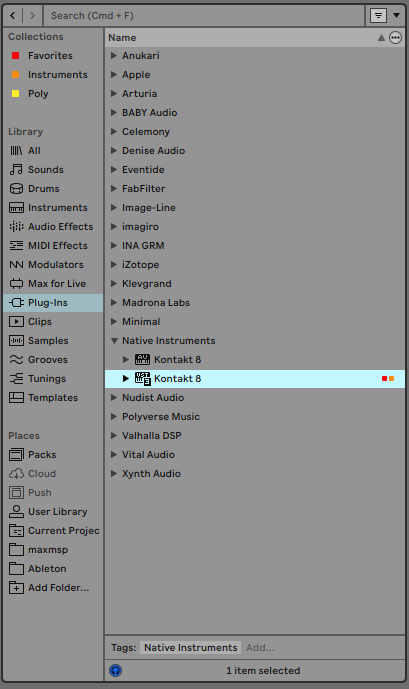
From here, please select ‘Plug-ins’ and then click the dropdown for ‘Native Instruments.’ Here you should see Kontakt available as one of your plugins. Depending what version of Kontakt you have installed you may see a different name. Audio Imperia libraries can be used on Kontakt 6, Kontakt 7 or Kontakt 8. (Please Note: our most recent libraries updated with the Designer Interface require Kontakt 7.10.9 or later).
To load your instrument, you can either double click Kontakt, or click and drag it into the Clip/Device Drop Area in the middle of Live. Doing this will load Kontakt onto an empty MIDI track for you, ready to use.
Opening your product in Kontakt
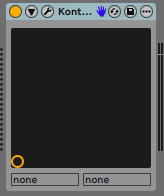
If you don’t see the Kontakt window appear straight away, navigate to the device bar at the bottom of Live and click the small spanner symbol next to Kontakt.
You can know which version of Kontakt you have loaded by the name of the plugin loaded.
Kontakt 6 will show as ‘Kontakt’ within Ableton.
Kontakt 7 will show as ‘Kontakt 7’ within Ableton.
Kontakt 8 will show as ‘Kontakt 8’ within Ableton.
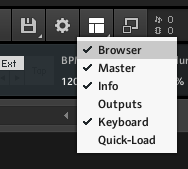
Toggle on the browser on the right using the dropdown here. You will need to enable “Browser”.
Now, on the left hand side click ‘Libraries’. You will see your Audio Imperia products here. Clicking ‘Instruments’ will show the various folders you can use to load your sounds.
Virtual instruments show as .nki files. Double clicking one will load it into your rack on the right hand side.
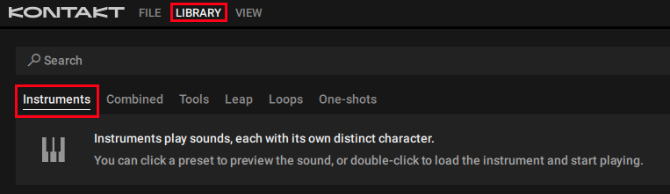
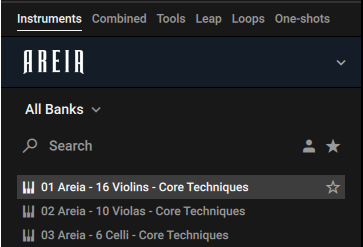
Highlight the LIBRARY button in Kontakt’s header and click the Instruments tab:
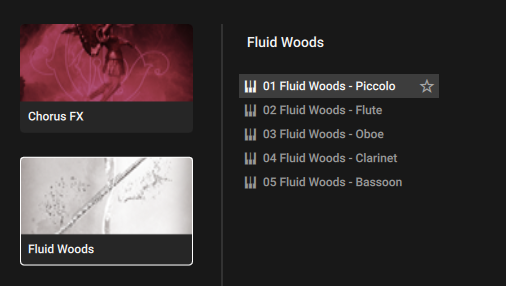
The Library Browser displays all Kontakt libraries that are installed. Scroll through the browser and click the picture icon for your library. This will display a list of instrument presets on the right.
Clicking once on a preset will activate a preview. Double-clicking the preset will load the instrument.
To load an instrument using the Library browser:
Highlight the LIBRARY button in Kontakt’s header and click the Instruments tab:
The Library Browser displays all Kontakt libraries that are installed. Scroll through the browser and click the picture icon for your library. This will display a list of instrument presets on the right.
A lot of Audio Imperia libraries are setup so you can browse using ‘Banks’. Think of them like virtual folders. Clicking these will allow you to filter to different types of instruments and patch types.
Clicking once on a preset will activate a preview. Double-clicking the preset will load the instrument.
To load an instrument using the side-pane browser:
In the side pane on the left, make sure that the Instruments category is selected (this should be the case by default), otherwise click Instruments to select that category.
You can now navigate and select your product’s artwork tile.
Click on the arrow icon (>) in the top right corner of the instrument’s artwork to load the instrument and its first preset.
Alternatively, you can click the instrument’s artwork to display the list of its presets.
A lot of Audio Imperia libraries are setup so you can browse using ‘Banks’. Think of them like virtual folders. Clicking these will allow you to filter to different types of instruments and patch types.
Clicking once on a preset will activate a preview. Double-clicking the preset will load the instrument.
Getting started with composing?Getting started composing can be hard. That's why we made 'The Modern Composer Blueprint', a one stop shop course teaching you everything you need to know to get started with composing. Our courses will help you master musical theory, orchestration, MIDI, and programming with virtual instruments, plus give you hands-on scoring experience.